
How to set up a VPS in 2026
A VPS is not production ready when it boots. It needs SSH keys, a non-root admin user, firewall rules, updates, a web stack, DNS, SSL, backups, monitoring, and a tested restore path.
 By WebHostWatch editors
Updated April 26, 2026
By WebHostWatch editors
Updated April 26, 2026
VPS setup map
The first hour decides whether the VPS becomes stable infrastructure or an unmanaged liability. Build the access, security, backup, and rollback path before publishing the site.
Choose a plan with enough CPU, RAM, NVMe disk, bandwidth, and backup budget.
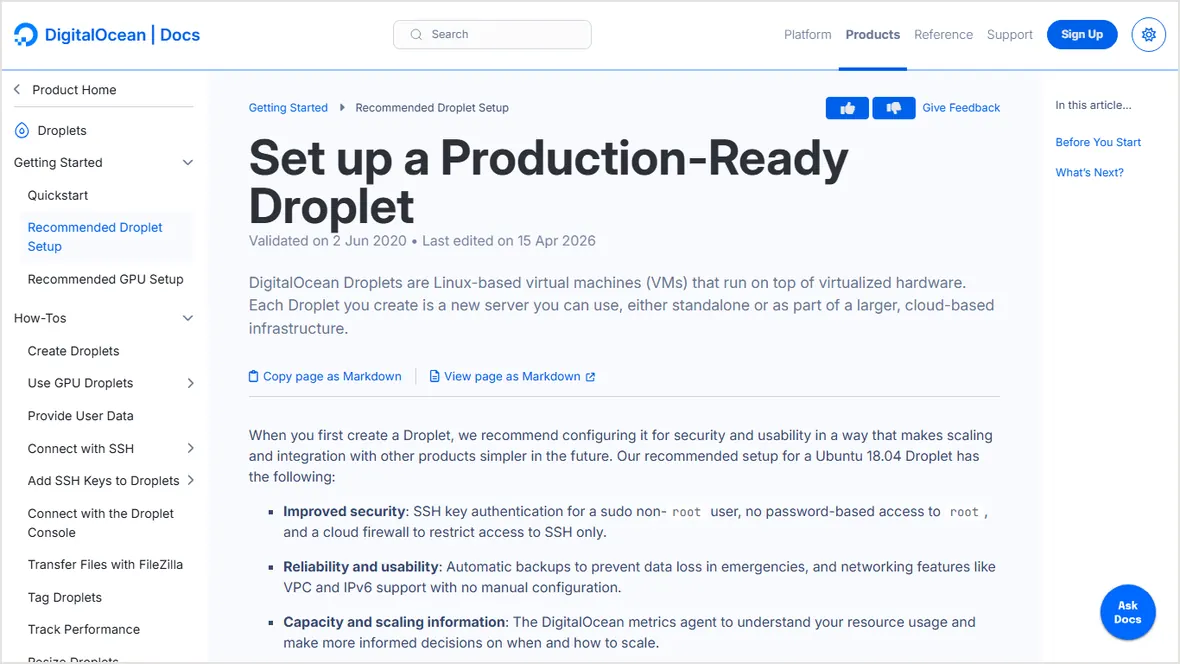
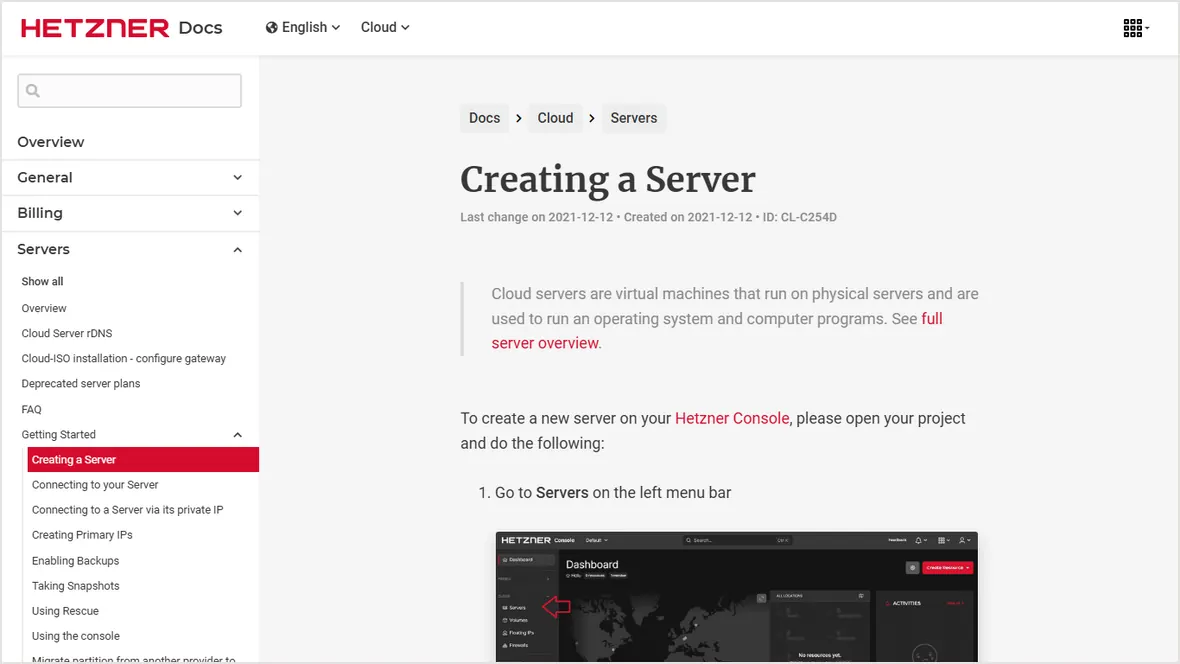
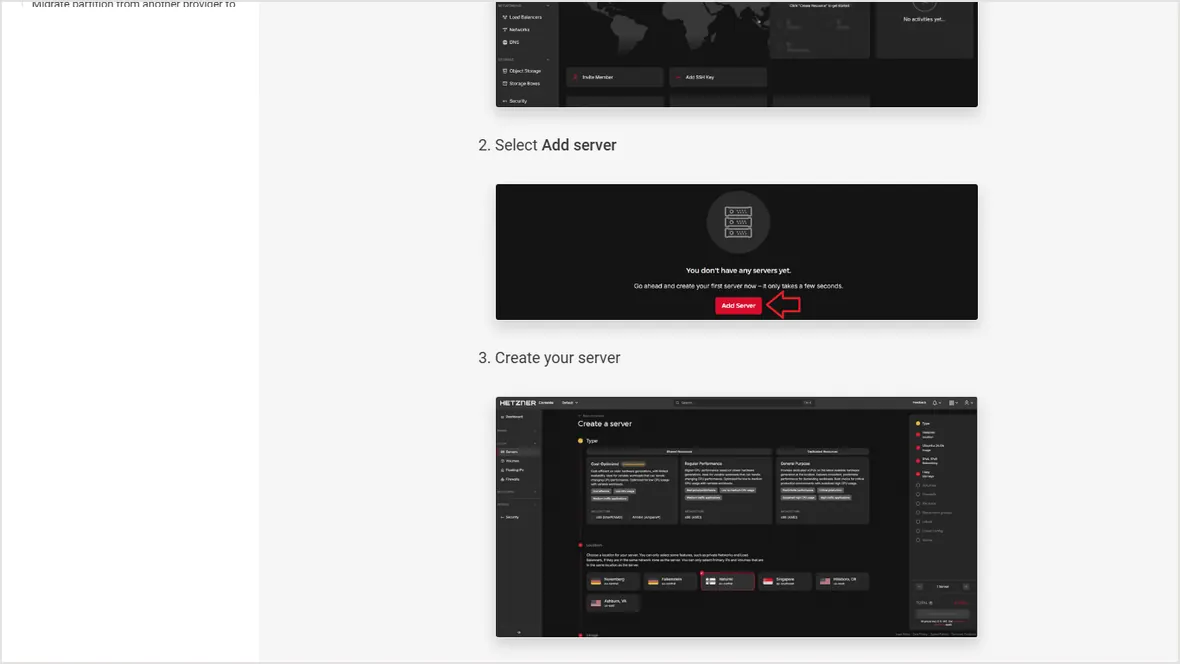
Create the server with SSH keys, correct region, provider firewall, and backups selected.
Create a sudo user, patch packages, enable firewall rules, and protect SSH.
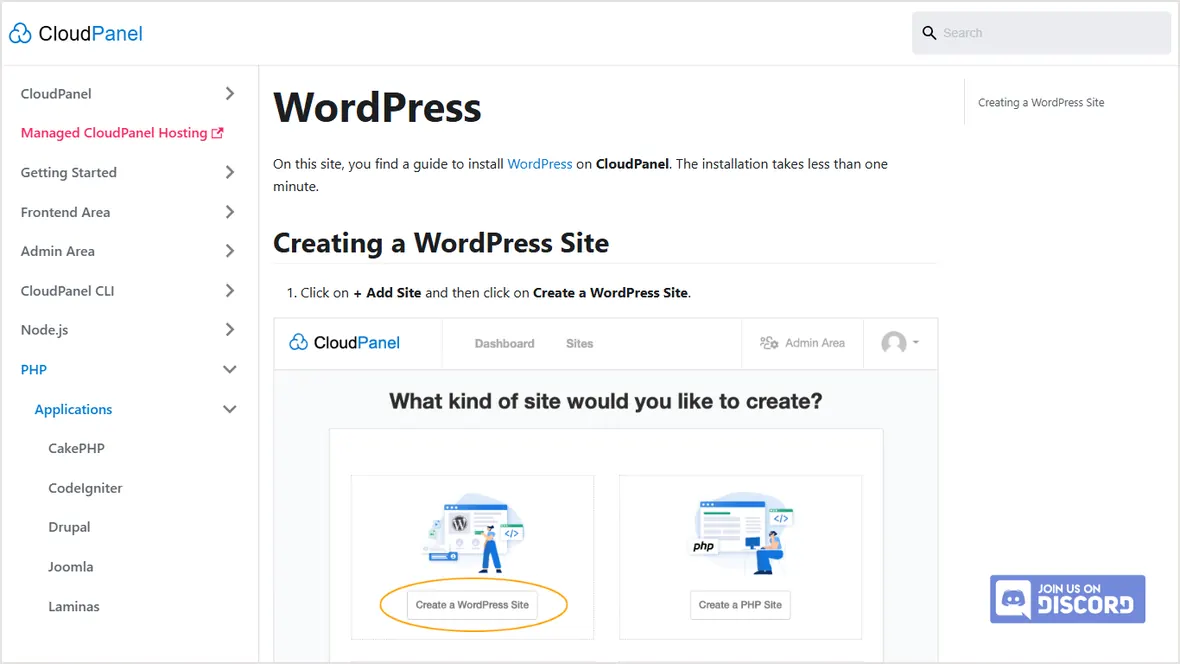
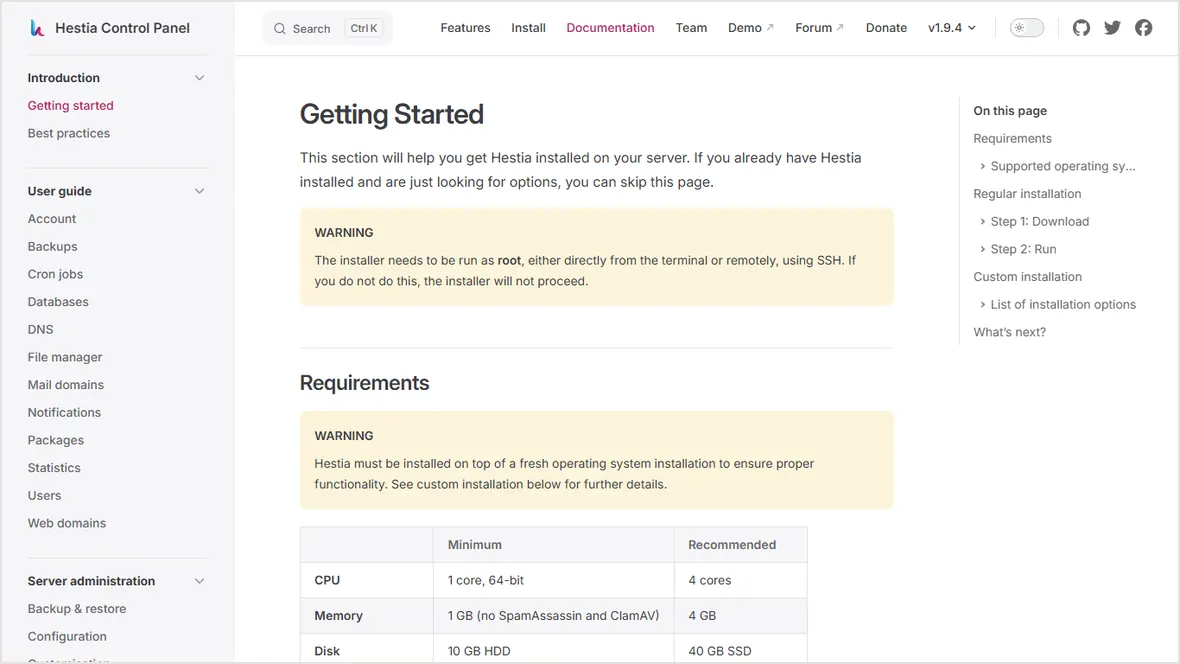
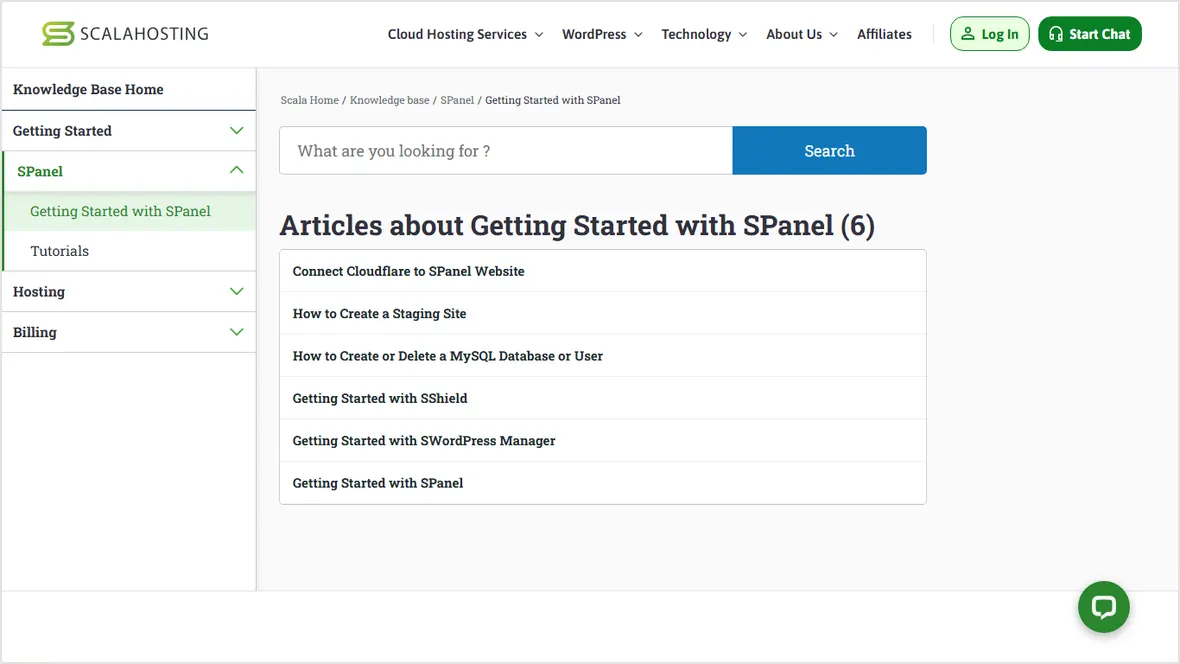
Pick managed panel, CloudPanel, HestiaCP, or manual Nginx based on your maintenance ability.
Point DNS, issue SSL, test HTTP and HTTPS, and verify redirects.
Add monitoring, off-server backups, restore testing, and update notes.
1. Create the server with production settings
Pick a size that leaves headroom
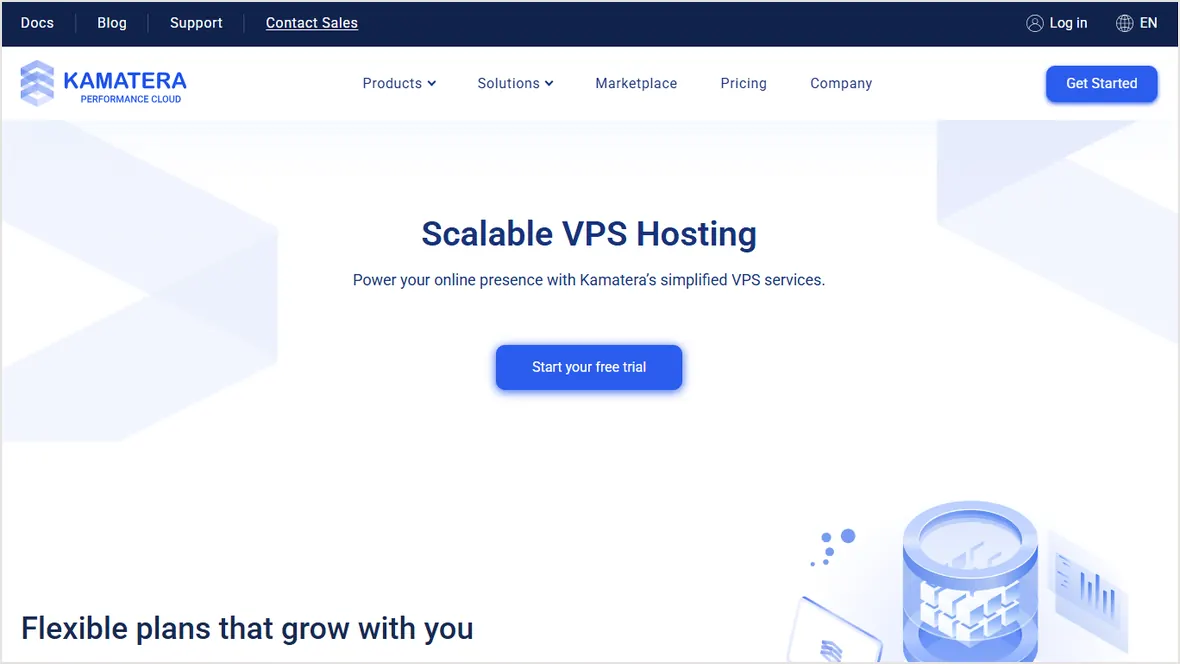
For a small WordPress or PHP site, 2 vCPU and 4 GB RAM is a safer starting point than the cheapest 1 GB instance. For WooCommerce, multiple active sites, or image-heavy publishing, budget more memory and disk before you migrate.
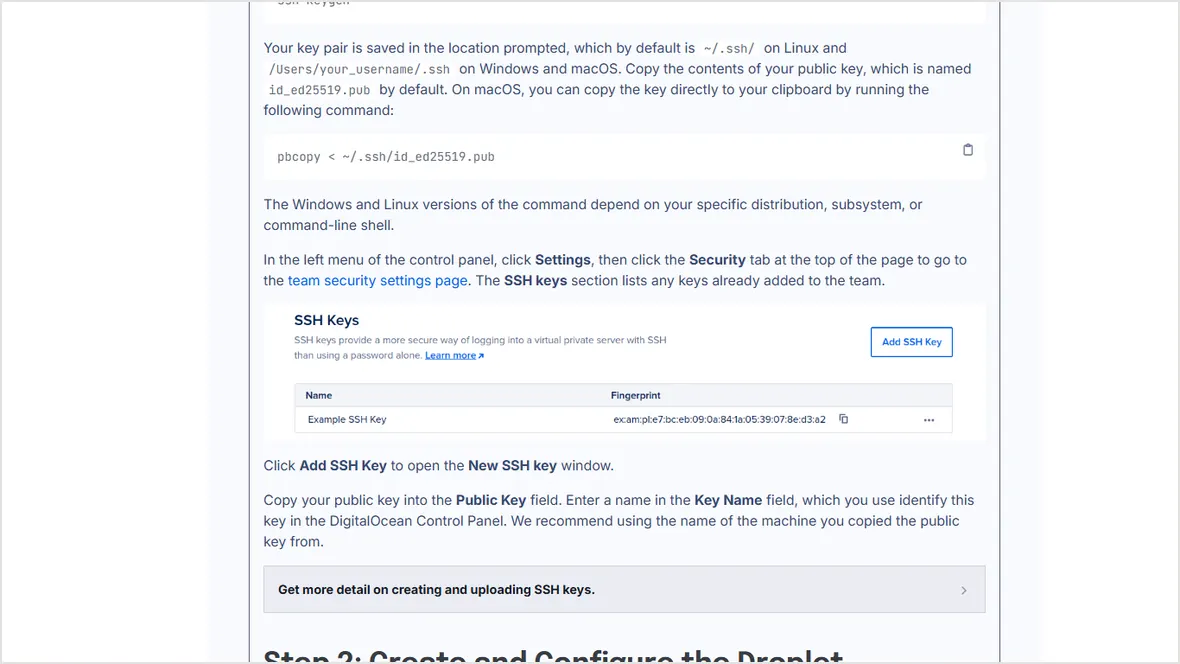
Create with SSH keys, not password-only login
Add an SSH public key during server creation. Password login is easier to brute-force and should not be the default path for a public server.
ssh-keygen -t ed25519 -C "[email protected]"
# Upload the .pub key to the VPS provider before creating the server.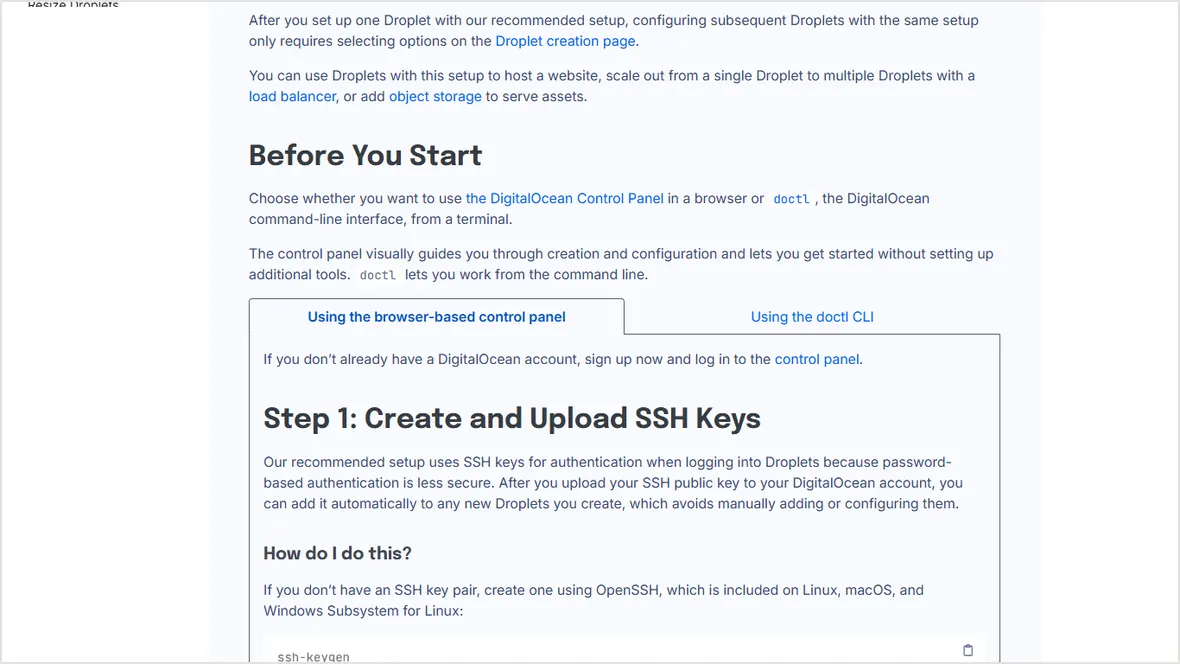
2. First login, sudo user, and package updates
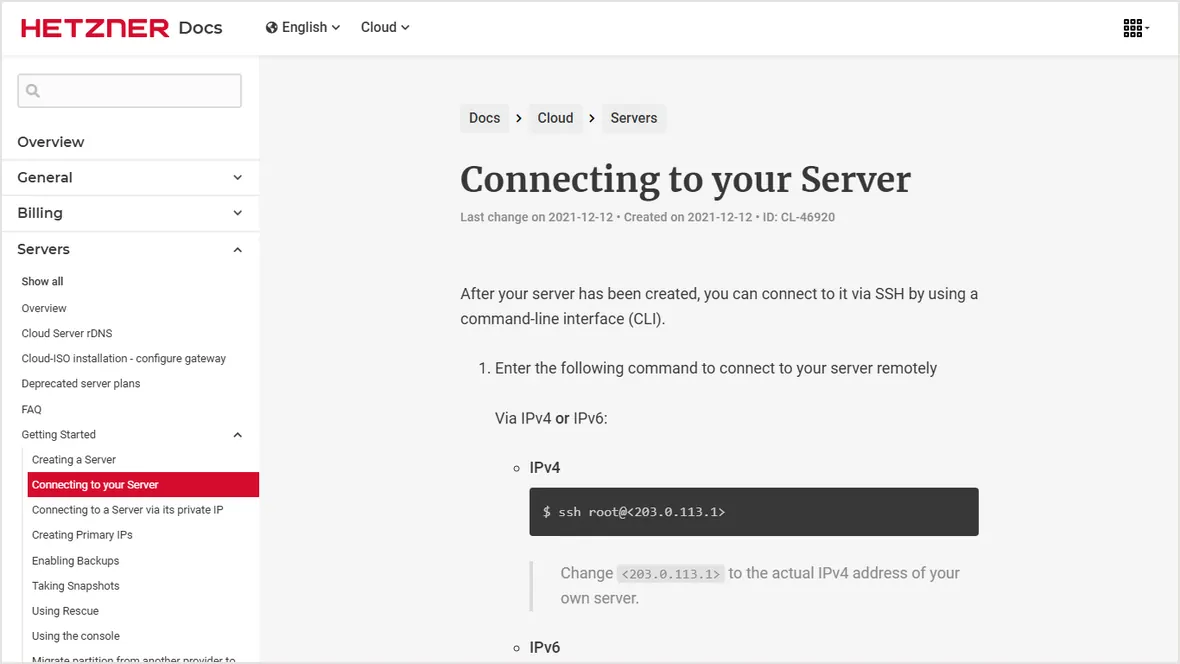
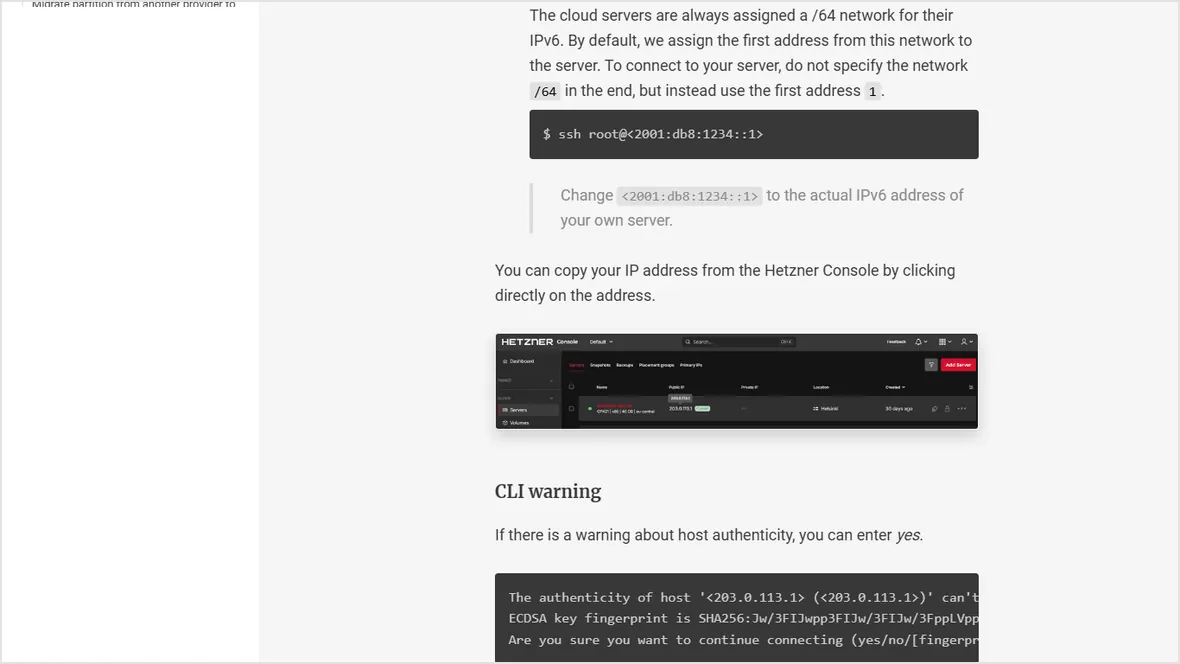
Keep the original root session open until you verify a second SSH login works with the new sudo user.
ssh root@SERVER_IP
adduser deploy
usermod -aG sudo deploy
rsync --archive --chown=deploy:deploy ~/.ssh /home/deploy
ssh deploy@SERVER_IPdon't close the root terminal until `ssh deploy@SERVER_IP` works from a separate terminal. This avoids locking yourself out.
3. Firewall, updates, and exposed ports
Use provider firewall and server firewall together
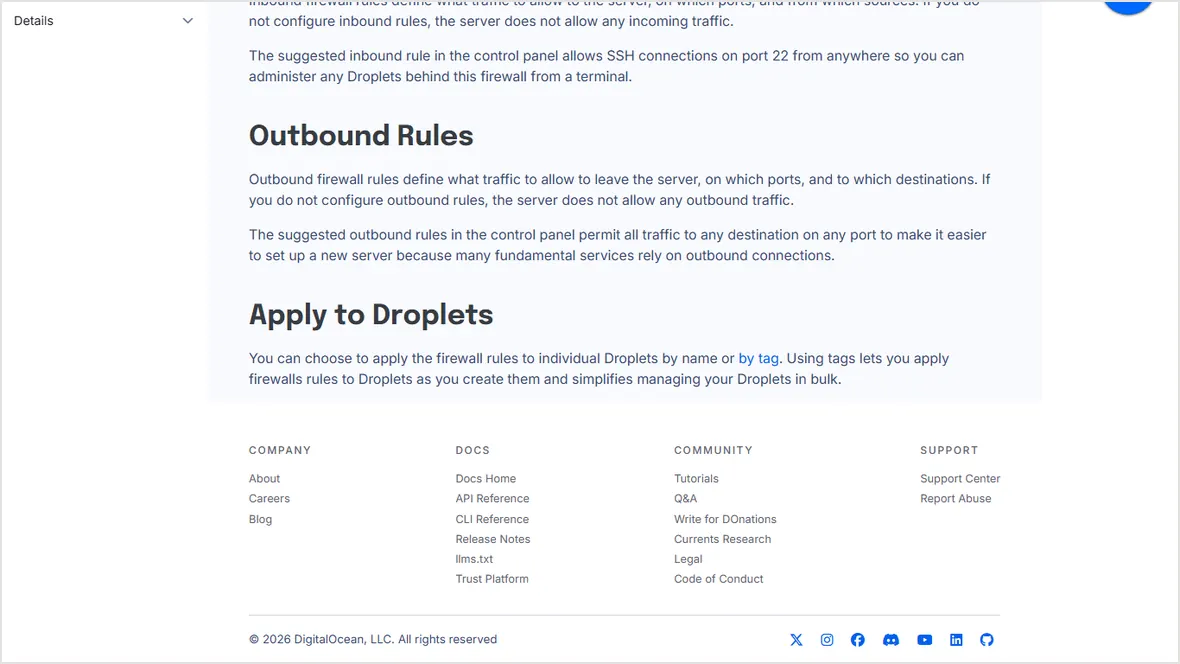
The provider firewall blocks traffic before the server. The server firewall protects the operating system if provider rules change later. Start with SSH, then add HTTP and HTTPS only when the web stack is ready.
sudo apt update && sudo apt -y upgrade
sudo apt -y install ufw unattended-upgrades
sudo ufw allow OpenSSH
sudo ufw allow 80/tcp
sudo ufw allow 443/tcp
sudo ufw enable
sudo ufw status verbose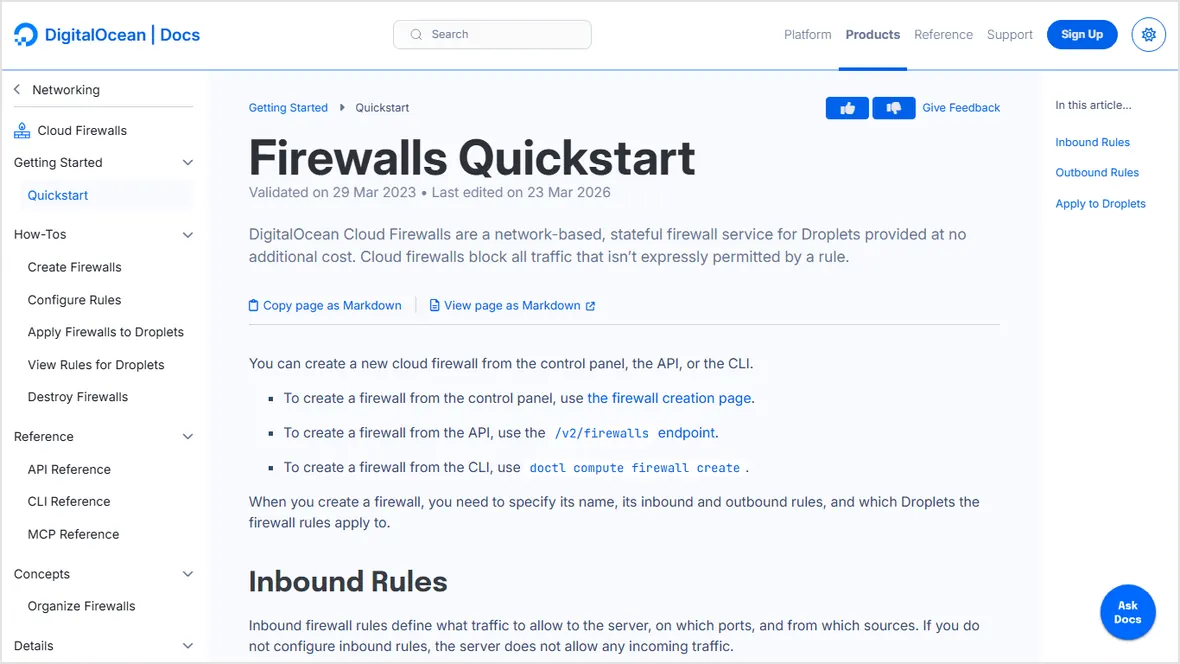
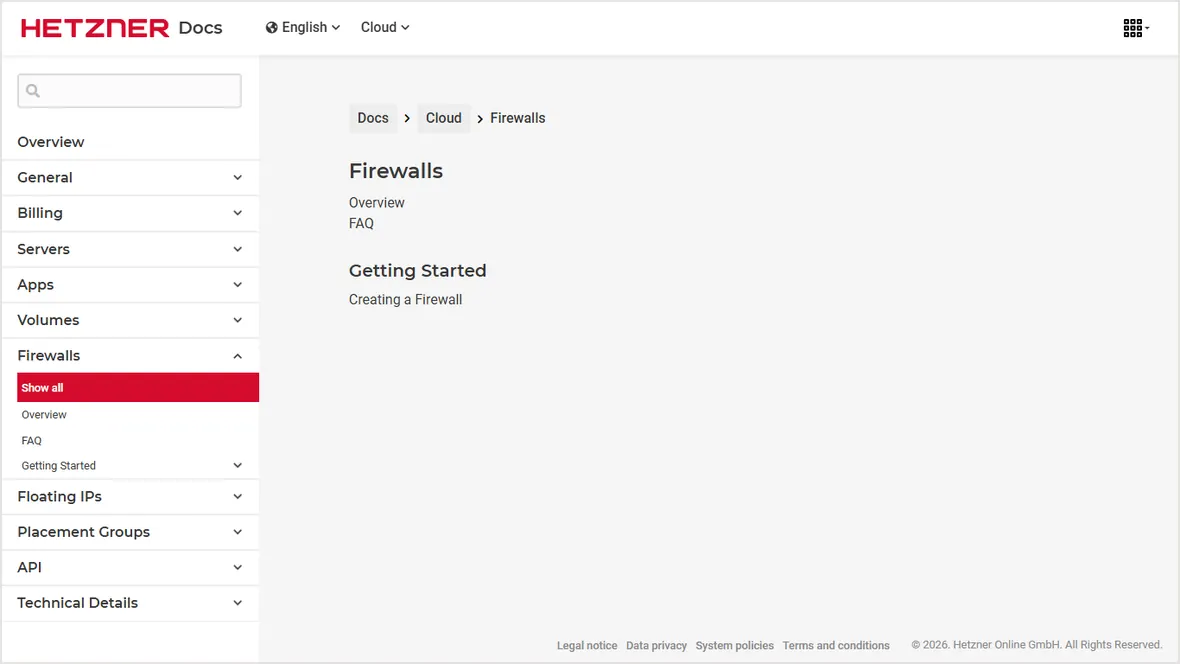
Patch before you install the app stack
Update the base image first, then install the control panel or web stack. If the VPS image is old, installing panel software before package updates can create dependency problems.
4. Choose the web stack you can maintain
Managed VPS or SPanel
Best when you want VPS resources but don't want to own every OS, malware, and panel task yourself.
CloudPanel
Best for lean PHP, WordPress, and Nginx hosting when email and DNS live outside the server.
HestiaCP
Best for a free traditional panel with web, DNS, mail, and Apache compatibility in one stack.
Manual Nginx
Best for engineers with repeatable configuration, monitoring, backups, and incident response habits.
# Example manual stack starting point for Ubuntu
sudo apt -y install nginx mariadb-server php-fpm php-mysql certbot python3-certbot-nginx
sudo systemctl enable --now nginx mariadb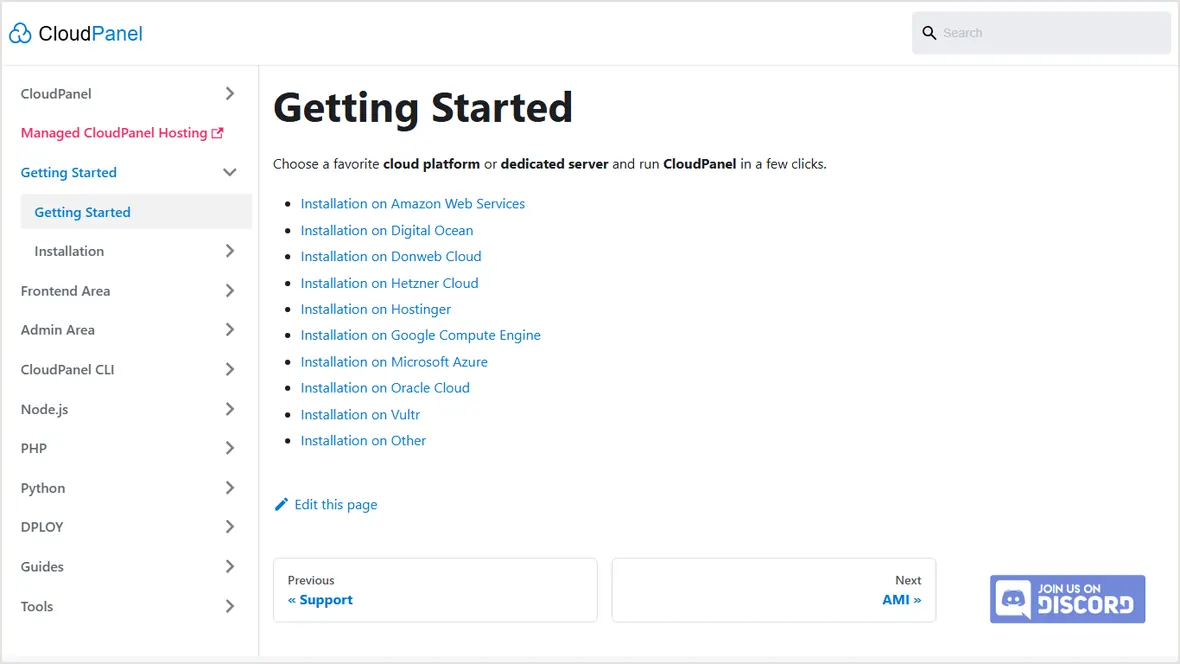
5. Point DNS, issue SSL, and test redirects
After the web stack responds on the server IP, point the domain. Use an A record for the root domain, a CNAME for www when appropriate, and then issue SSL after DNS resolves to the new server.
dig +short example.com
curl -I http://example.com
sudo certbot --nginx -d example.com -d www.example.com
curl -I https://example.com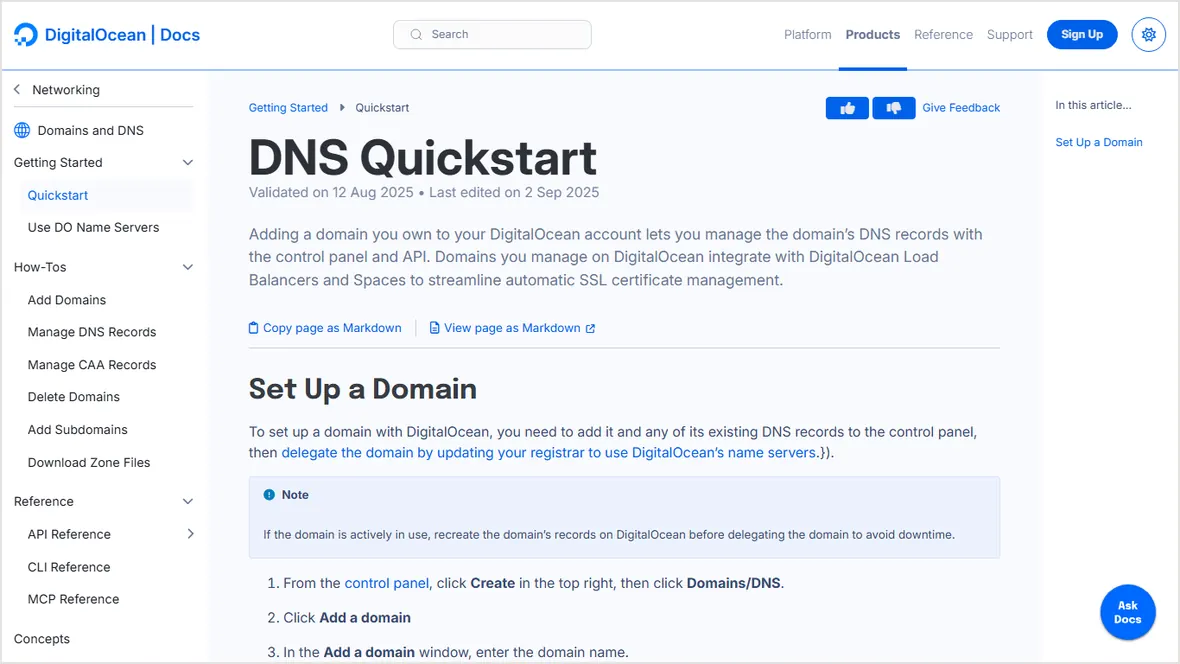
6. Backups, monitoring, restore test, and launch
The VPS is ready only after you can recover it. Store backups off-server, document restore steps, install monitoring, and set alerts for disk, memory, CPU, HTTP status, SSL expiry, and backup failure.
SSH key login works for a sudo user and root login is restricted according to your policy.
Only needed ports are open. SSH is restricted where the provider allows it.
Backups are off-server and a restore has been tested to a clean location.
Resource, uptime, SSL, and backup failure alerts are configured before launch.
Official sources checked
Embedded images are local WebP files saved from official provider documentation or product pages.
Used for SSH key, non-root user, firewall, backups, and monitoring sequence.
Used for provider firewall setup and port rules.
Used for DNS setup checks.
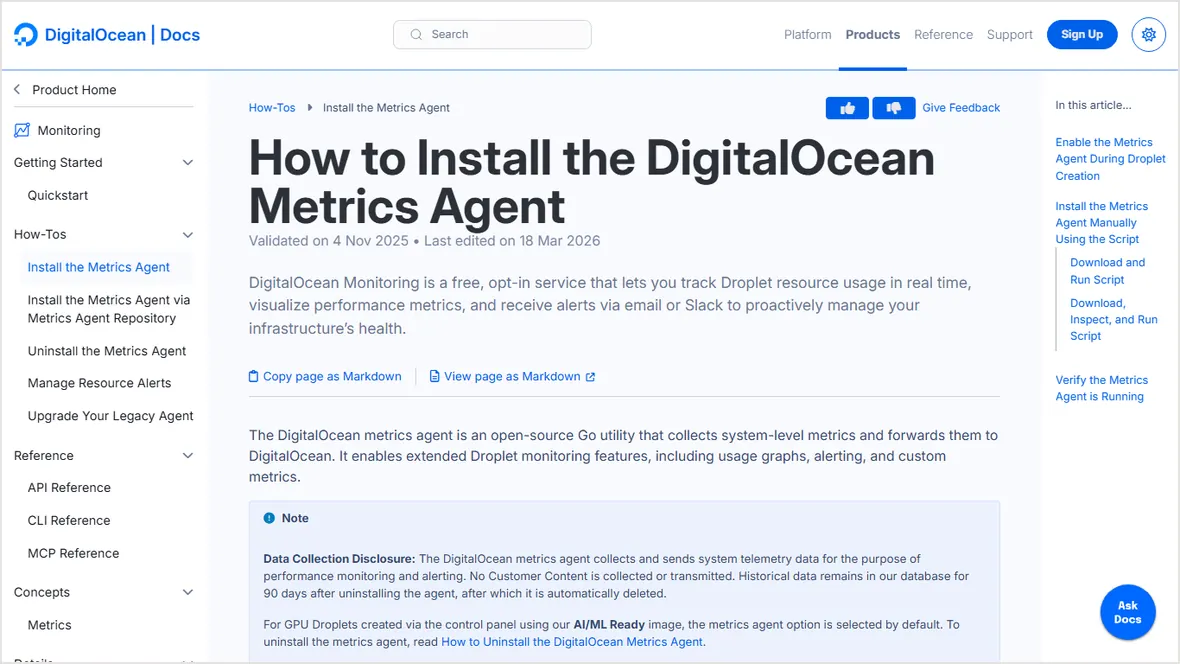
Used for monitoring setup context.
Used for server creation options.
Used for SSH connection checks.
Used for provider firewall context.
Used for panel setup path.
Used for panel-based site creation.
Used for traditional panel install context.
Used for configurable VPS context.
Used for managed VPS and SPanel context.