
How to install WordPress on hosting or a VPS panel
Start with a clean install, secure the admin account, connect the final domain, enable SSL, and keep the first plugin set small.
 By WebHostWatch editors
Updated April 28, 2026
By WebHostWatch editors
Updated April 28, 2026
1. Choose the right install path
Shared hosting installer
Best for a first site when the host manages the panel and basic server setup.
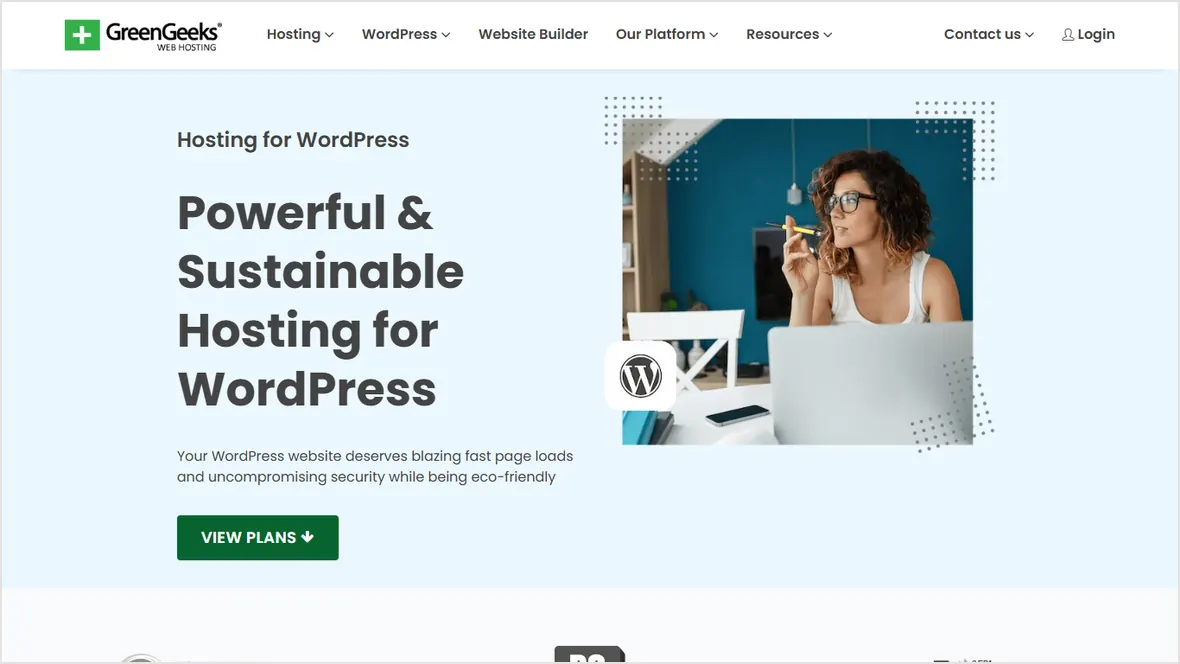
Managed WordPress
Best when WordPress support, backups, cache, and staging matter more than low cost.
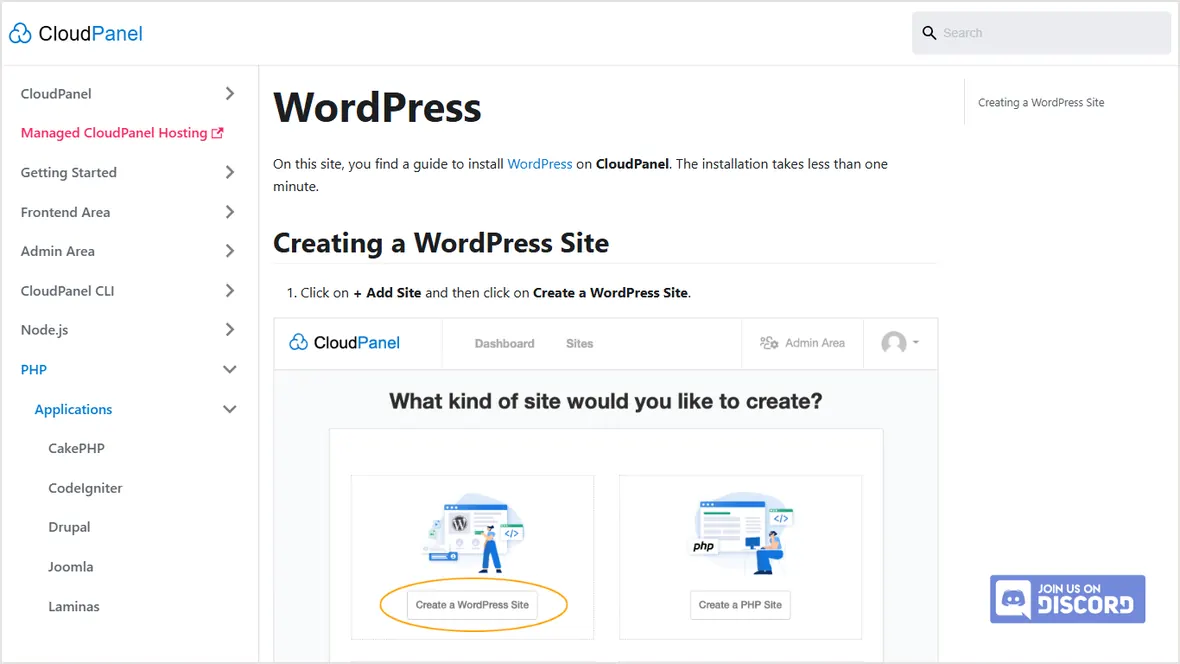
CloudPanel
Best for VPS users who want a lean PHP/Nginx WordPress panel without cPanel licensing.
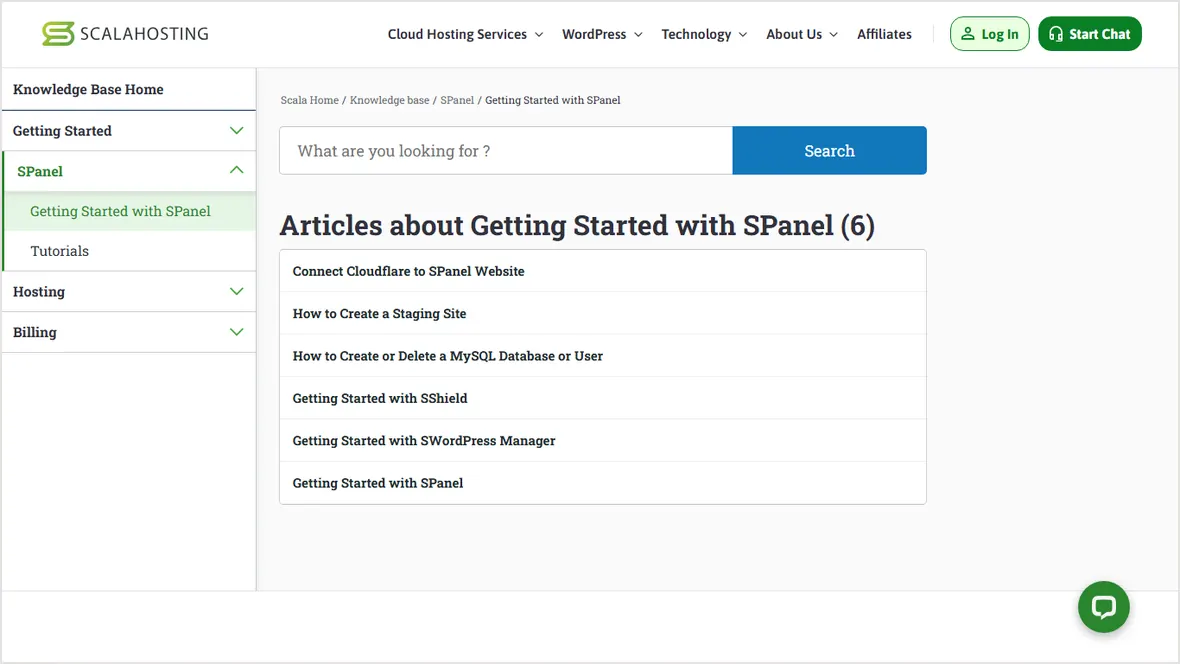
SPanel or managed VPS
Best when you want VPS isolation with more provider help.
2. Create the WordPress site
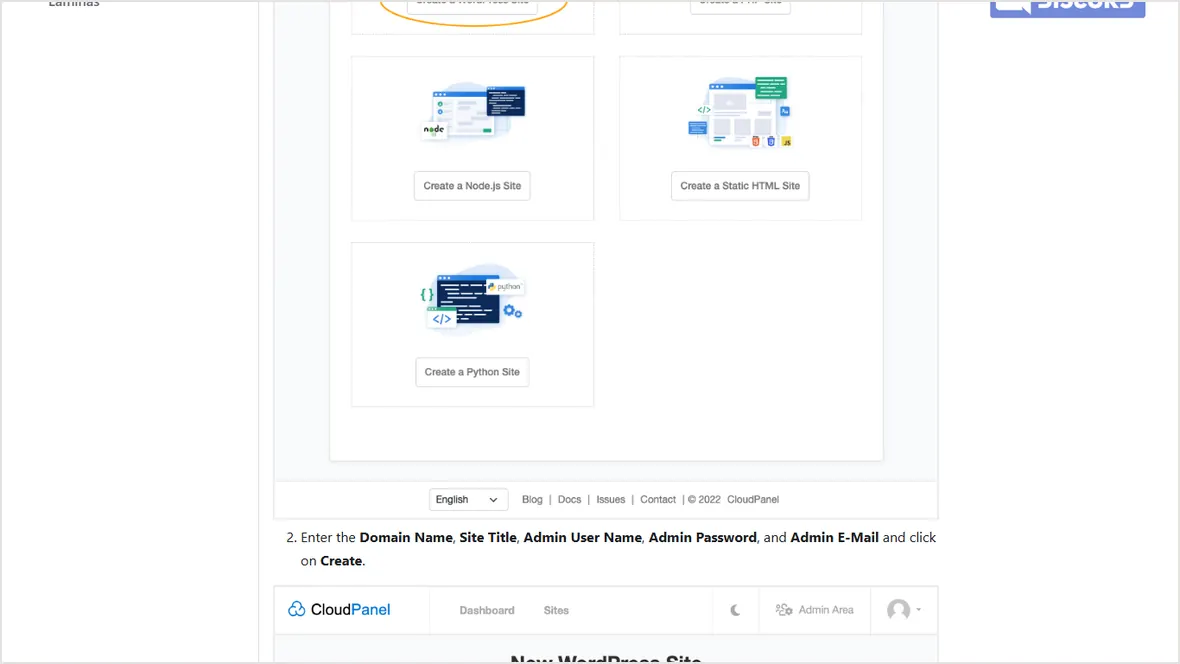
Use the final domain when possible
Installing on the final domain avoids cleanup later. If DNS is not ready, use a temporary URL only briefly and switch WordPress Address and Site Address after DNS is live.
Use a strong admin account
don't use admin as the username. Save the password in a password manager and enable two-factor authentication if the host or plugin supports it.
3. Secure the install before designing pages
Enable SSL and force HTTPS before adding forms or checkout.
Turn on backups before importing demo content or editing the theme.
Update WordPress core, theme, and plugins before launch.
Remove temporary users and enable two-factor authentication where possible.
4. Keep the first plugin set small
Install only the essentials first: SEO, forms, cache, image optimization, security, backups when the host doesn't provide them, and analytics consent. Add design-heavy plugins after the base site is stable.
A new WordPress site can become slow before launch if it starts with multiple builders, duplicate cache plugins, unused WooCommerce extensions, and tracking scripts.
Official sources checked
Used for panel-based WordPress creation steps.
Used for managed WordPress feature checklist context.
Used for managed panel setup context.